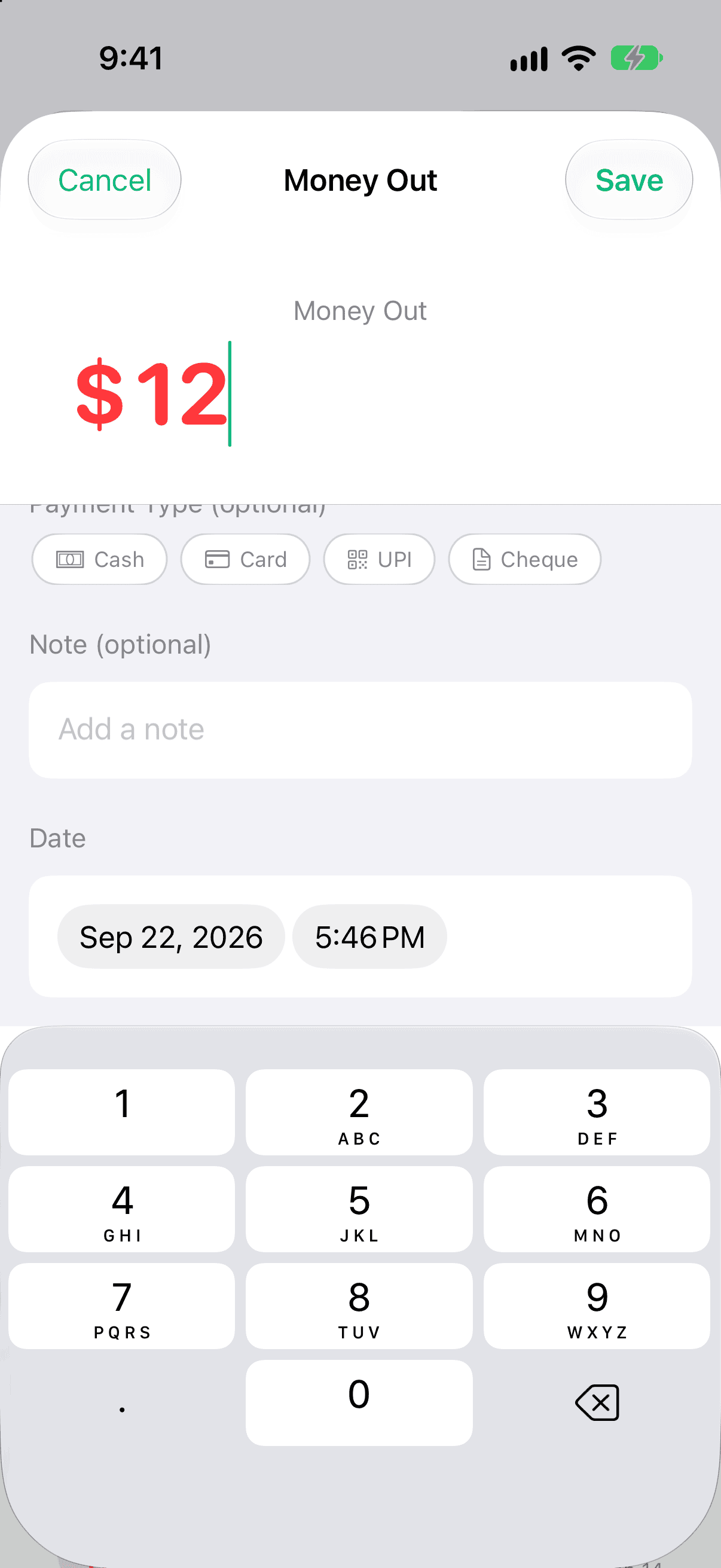
Every transaction in Pocket Clear has a date, and you can optionally also set the time of day it happened. The time is never required — if you skip it, the transaction still records normally.
Adding a time is handy when several transactions fall on the same day. The time is used to put those entries in the right order, so your day reads the way it actually unfolded.
How to set a time
Start adding a new transaction, or open an existing one to edit it.
Set the date as usual.
Set the time of day for the transaction.
Tap Save.
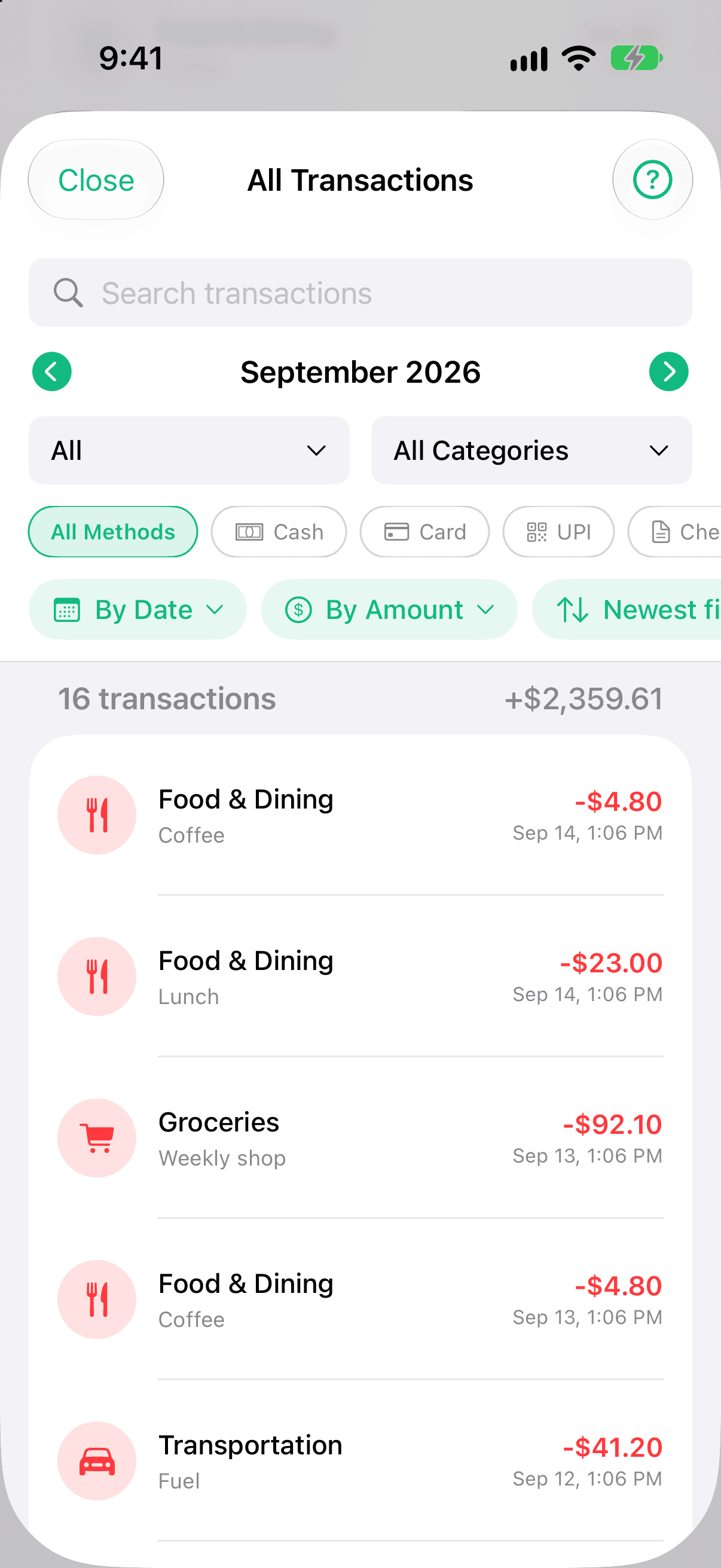
Tap the time pill to move it — logging late is fine.All Transactions sorts the day by time, newest first.
Tap the time pill to move it — logging late is fine.All Transactions sorts the day by time, newest first.
Where the time shows up
Ordering — when several transactions share the same day, the time is used to sort them in order.
On each row — the time shows on the transaction row alongside the date.
In exports — the time is included when you export your data to CSV or PDF.
To review your entries with their times, open All Transactions from the Home screen.