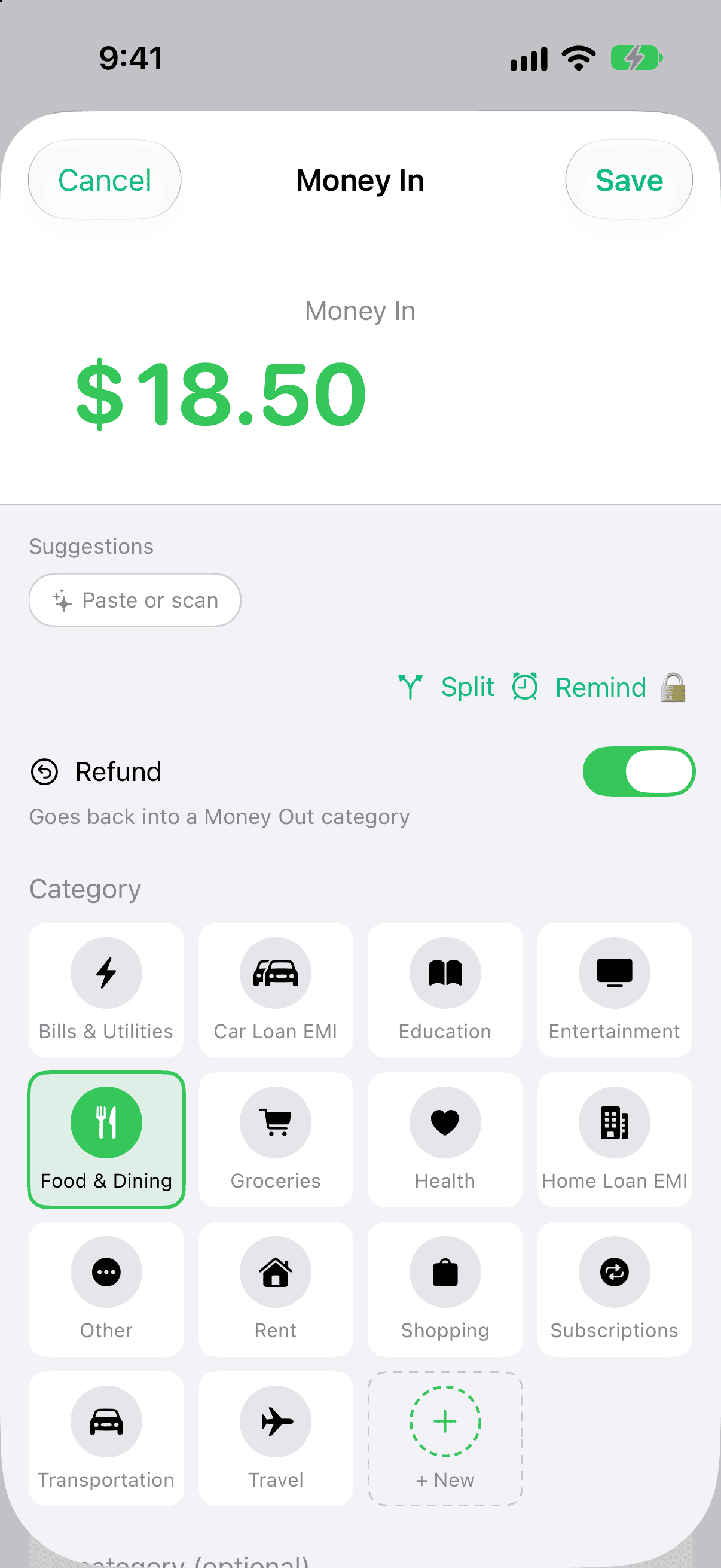
Returned something, or got money back for a bill? Log it as a refund and it goes back into the category it came out of. Your spending on that category drops by the refund, instead of the money showing up as extra income.
How to log a refund
Tap Money In.
Turn on Refund. The category list switches to your Money Out categories.
Pick the category the money originally came out of — Groceries, Shopping, whatever it was — enter the amount and save.
Under Money In, turn on Refund and pick the spending category the money goes back into.
Part of a payment is a refund
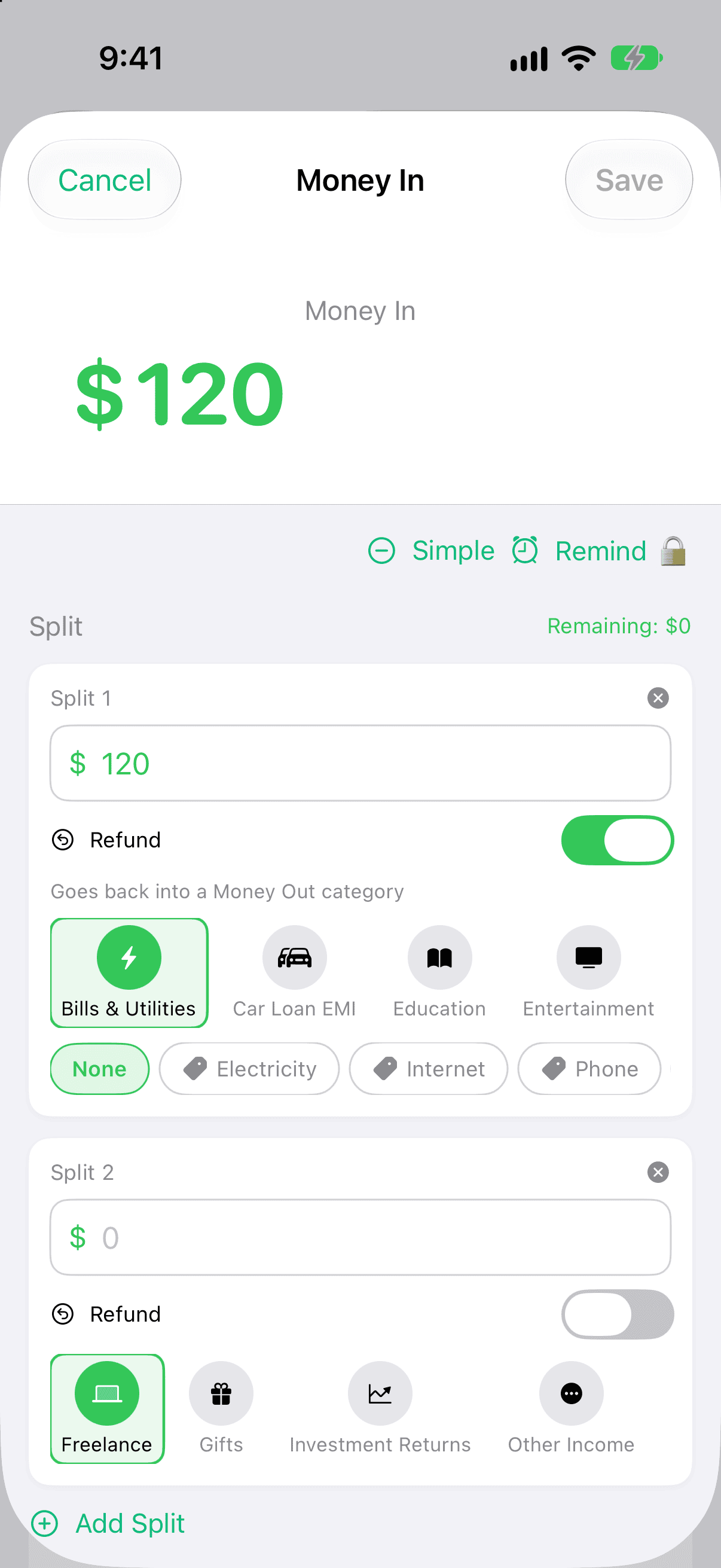
Sometimes a refund arrives inside a bigger deposit — a healthcare reimbursement paid out with your salary, say. Split it instead of logging two entries:
In a Money In split, each part has its own Refund switch.
Tap Money In, enter the whole amount and tap Split.
On the part that's a refund, turn on Refund and pick the Money Out category it goes back to (Healthcare). Leave the other parts as they are (Salary).
Make the parts add up to the total and save.
The refund part comes off its category in Reports and budgets exactly like any other refund, and the rest stays ordinary Money In. Each part is saved as its own entry, so you can open one later and flip its Refund switch on or off.
Where a refund shows up
Reports: the refund comes off its category in the Money Out breakdown — $100 on Shopping with a $30 refund shows Shopping at $70 — and it isn't listed again under Money In, so the same money is never counted twice. See Reports.
Budgets (Pro): the category's spent figure for the period is your spending minus the refund, so the budget has that room again. If a refund is bigger than what you spent in that period, the bar shows nothing spent rather than going below zero. See Budgets.
Home: a refund is still money that came in, so your balance and your Money In total both count it.
Good to know
To turn an existing Money In entry into a refund (or back), open it and flip the same Refund switch.
Refunds are free for everyone. Budget bars are part of Pro.
With Partner Mode, your partner's refunds come off their category in the combined view just like yours.
Refunds need Pocket Clear 2.16 or later. On a phone that hasn't updated yet, a refund simply shows up as Money In. Marking one part of a split as a refund needs 2.17 or later.
Apple Pay auto-log skips refunds, so log those by hand — see Capture.