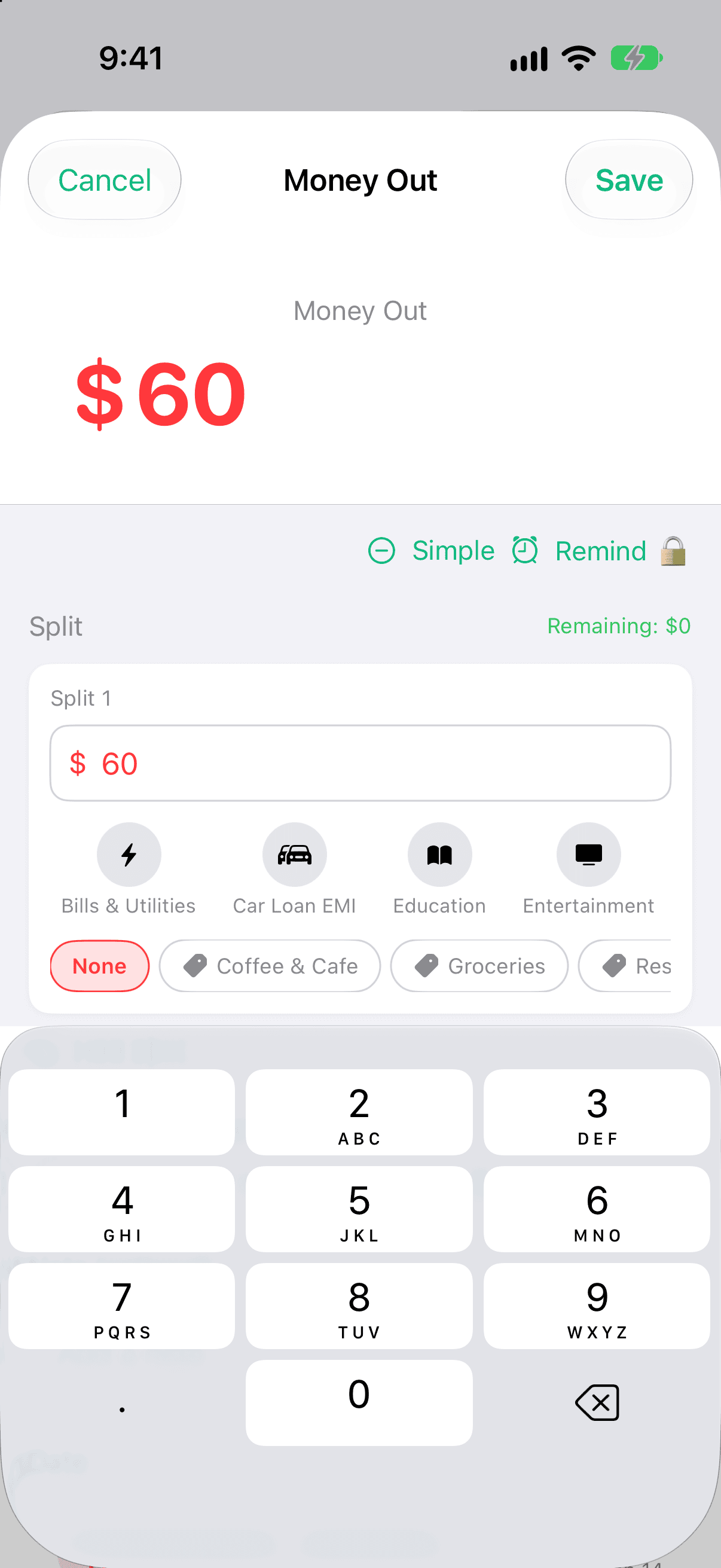
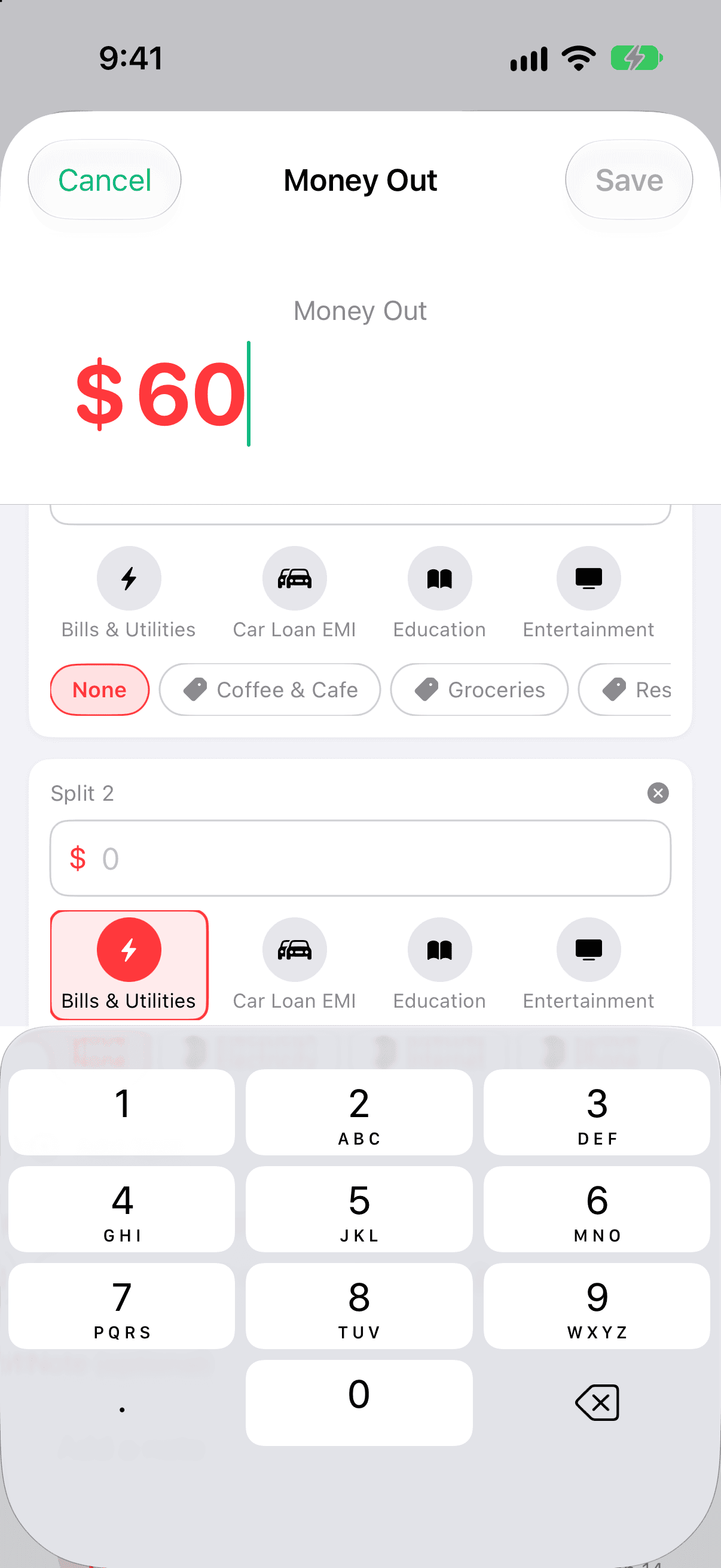
A split lets you divide one transaction across multiple categories. Think of a single supermarket receipt that's partly Groceries and partly Household, or a shopping trip that spans several categories — instead of forcing the whole amount into one bucket, you break it into parts that each land where they belong.
Splitting keeps your spending accurate without making you enter several separate transactions. One receipt stays as one transaction, but each part counts toward its own category. It's free for everyone.
How to split a transaction
Tap + to add a transaction.
Enter the total amount.
Turn on Split mode.
Add a category and an amount for each part of the purchase.
The split amounts must add up to the total before you can save.
Tap Save.
Tap Split to break an amount up.Each part gets its own category and amount.
Tap Split to break an amount up.Each part gets its own category and amount.
Each split is saved so its amount lands in the right category. If you add a note, the split rows carry a [Split] marker in front of it, so you can recognise them later.
Good to know
Each part counts toward its own category in Reports and budgets.
The split amounts must equal the total amount — you can't save until they match.
If you add a note to the transaction, each split row is tagged with a [Split] marker so they're easy to spot.